
Dạo gần đây trên khắp các trang mạng xã hội như Facebook, TikTok, Instagram,… khi lướt phần bảng tin thì chúng ta thường bắt gặp được đoạn video trong bộ phim Chiếu sáng anh sưởi ấm em của Trung Quốc đang được nhiều bạn trẻ quan tâm hiện nay. Trong đoạn video này, nhân vật nam trong phim đã nhập mã code và xuất ra hình ảnh trái tim đập để tỏ tình với crush vô cùng ấn tượng, đặt biệt hiện tại dân IT đang quan tâm và muốn biết nội dung của đoạn code và cách chạy thử đoạn code trái tim đập, nhưng lại không biết làm thế nào?
Để giúp cho mọi người có thể dễ dàng và nhanh chóng tạo trái tim tỏ tình giống với trong bộ phim ngôn tình Trung Quốc này, thì trong bài viết này chúng tôi sẽ giới thiệu đến cho mọi người mã code và làm cách nào để tạo hình ảnh trái tim đập tỏ tình trên máy tính bằng phần mềm Notepad có sẵn trên thiết bị. Hôm nay, Download.com.vn xin mời các bạn cùng theo dõi bài viết hướng dẫn nhập code trái tim đập của Thủ Khoa Lý.
Hướng dẫn nhập, tạo code trái tim đập của Thủ Khoa Lý
Hướng dẫn nhanh:
Mở phần mềm Notepad trên máy tính > Tạo một file ghi chú mới > Copy và nhập mã code ở phía dưới > Sửa phần text trong dòng code: text-align: center;”>Anh Yêu Em</div> > Click chuột vào mục File > Nhấp chuột vào nút Save As > Đặt tên file code với đuôi “.html” > Nhấn vào nút Save > Mở và chạy file code vừa lưu trên máy tính.
Hướng dẫn chi tiết:
Bước 1: Để thực hiện được điều này, thì đầu tiên chúng ta sẽ mở phần mềm Notepad trên máy tính của mình lên.
Bước 2: Sau đó, mở một file ghi chú mới và copy, nhập đoạn code trái tim đập tỏ tình phía dưới đây.
<!DOCTYPE HTML PUBLIC “-//W3C//DTD HTML 4.0 Transitional//EN”> <HTML> <HEAD> <TITLE> Heart </TITLE> <META NAME=”Generator” CONTENT=”EditPlus”> <META NAME=”Author” CONTENT=””> <META NAME=”Keywords” CONTENT=””> <META NAME=”Description” CONTENT=””> <style> html, body { height: 100%; padding: 0; margin: 0; background: #000; display: flex; justify-content: center; align-items: center; } .box { width: 100%; position: absolute; top: 50%; left: 50%; transform: translate(-50%, -50%); display: flex; flex-direction: column; } canvas { position: absolute; width: 100%; height: 100%; } #pinkboard { position: relative; margin: auto; height: 500px; width: 500px; animation: animate 1.3s infinite; } #pinkboard:before, #pinkboard:after { content: ”; position: absolute; background: #FF5CA4; width: 100px; height: 160px; border-top-left-radius: 50px; border-top-right-radius: 50px; } #pinkboard:before { left: 100px; transform: rotate(-45deg); transform-origin: 0 100%; box-shadow: 0 14px 28px rgba(0,0,0,0.25), 0 10px 10px rgba(0,0,0,0.22); } #pinkboard:after { left: 0; transform: rotate(45deg); transform-origin: 100% 100%; } @keyframes animate { 0% { transform: scale(1); } 30% { transform: scale(.8); } 60% { transform: scale(1.2); } 100% { transform: scale(1); } } </style> </HEAD> <BODY> <div class=”box”> <canvas id=”pinkboard”></canvas> </div> <script> /* * Settings */ var settings = { particles: { length: 2000, // maximum amount of particles duration: 2, // particle duration in sec velocity: 100, // particle velocity in pixels/sec effect: -1.3, // play with this for a nice effect size: 13, // particle size in pixels }, }; /* * RequestAnimationFrame polyfill by Erik Möller */ (function(){var b=0;var c=[“ms”,”moz”,”webkit”,”o”];for(var a=0;a<c.length&&!window.requestAnimationFrame;++a){window.requestAnimationFrame=window[c[a]+”RequestAnimationFrame”];window.cancelAnimationFrame=window[c[a]+”CancelAnimationFrame”]||window[c[a]+”CancelRequestAnimationFrame”]}if(!window.requestAnimationFrame){window.requestAnimationFrame=function(h,e){var d=new Date().getTime();var f=Math.max(0,16-(d-b));var g=window.setTimeout(function(){h(d+f)},f);b=d+f;return g}}if(!window.cancelAnimationFrame){window.cancelAnimationFrame=function(d){clearTimeout(d)}}}()); /* * Point class */ var Point = (function() { function Point(x, y) { this.x = (typeof x !== ‘undefined’) ? x : 0; this.y = (typeof y !== ‘undefined’) ? y : 0; } Point.prototype.clone = function() { return new Point(this.x, this.y); }; Point.prototype.length = function(length) { if (typeof length == ‘undefined’) return Math.sqrt(this.x * this.x + this.y * this.y); this.normalize(); this.x *= length; this.y *= length; return this; }; Point.prototype.normalize = function() { var length = this.length(); this.x /= length; this.y /= length; return this; }; return Point; })(); /* * Particle class */ var Particle = (function() { function Particle() { this.position = new Point(); this.velocity = new Point(); this.acceleration = new Point(); this.age = 0; } Particle.prototype.initialize = function(x, y, dx, dy) { this.position.x = x; this.position.y = y; this.velocity.x = dx; this.velocity.y = dy; this.acceleration.x = dx * settings.particles.effect; this.acceleration.y = dy * settings.particles.effect; this.age = 0; }; Particle.prototype.update = function(deltaTime) { this.position.x += this.velocity.x * deltaTime; this.position.y += this.velocity.y * deltaTime; this.velocity.x += this.acceleration.x * deltaTime; this.velocity.y += this.acceleration.y * deltaTime; this.age += deltaTime; }; Particle.prototype.draw = function(context, image) { function ease(t) { return (-t) * t * t + 1; } var size = image.width * ease(this.age / settings.particles.duration); context.globalAlpha = 1 – this.age / settings.particles.duration; context.drawImage(image, this.position.x – size / 2, this.position.y – size / 2, size, size); }; return Particle; })(); /* * ParticlePool class */ var ParticlePool = (function() { var particles, firstActive = 0, firstFree = 0, duration = settings.particles.duration; function ParticlePool(length) { // create and populate particle pool particles = new Array(length); for (var i = 0; i < particles.length; i++) particles[i] = new Particle(); } ParticlePool.prototype.add = function(x, y, dx, dy) { particles[firstFree].initialize(x, y, dx, dy); // handle circular queue firstFree++; if (firstFree == particles.length) firstFree = 0; if (firstActive == firstFree ) firstActive++; if (firstActive == particles.length) firstActive = 0; }; ParticlePool.prototype.update = function(deltaTime) { var i; // update active particles if (firstActive < firstFree) { for (i = firstActive; i < firstFree; i++) particles[i].update(deltaTime); } if (firstFree < firstActive) { for (i = firstActive; i < particles.length; i++) particles[i].update(deltaTime); for (i = 0; i < firstFree; i++) particles[i].update(deltaTime); } // remove inactive particles while (particles[firstActive].age >= duration && firstActive != firstFree) { firstActive++; if (firstActive == particles.length) firstActive = 0; } }; ParticlePool.prototype.draw = function(context, image) { // draw active particles if (firstActive < firstFree) { for (i = firstActive; i < firstFree; i++) particles[i].draw(context, image); } if (firstFree < firstActive) { for (i = firstActive; i < particles.length; i++) particles[i].draw(context, image); for (i = 0; i < firstFree; i++) particles[i].draw(context, image); } }; return ParticlePool; })(); /* * Putting it all together */ (function(canvas) { var context = canvas.getContext(‘2d’), particles = new ParticlePool(settings.particles.length), particleRate = settings.particles.length / settings.particles.duration, // particles/sec time; // get point on heart with -PI <= t <= PI function pointOnHeart(t) { return new Point( 160 * Math.pow(Math.sin(t), 3), 130 * Math.cos(t) – 50 * Math.cos(2 * t) – 20 * Math.cos(3 * t) – 10 * Math.cos(4 * t) + 25 ); } // creating the particle image using a dummy canvas var image = (function() { var canvas = document.createElement(‘canvas’), context = canvas.getContext(‘2d’); canvas.width = settings.particles.size; canvas.height = settings.particles.size; // helper function to create the path function to(t) { var point = pointOnHeart(t); point.x = settings.particles.size / 2 + point.x * settings.particles.size / 350; point.y = settings.particles.size / 2 – point.y * settings.particles.size / 350; return point; } // create the path context.beginPath(); var t = -Math.PI; var point = to(t); context.moveTo(point.x, point.y); while (t < Math.PI) { t += 0.01; // baby steps! point = to(t); context.lineTo(point.x, point.y); } context.closePath(); // create the fill context.fillStyle = ‘#FF5CA4’; context.fill(); // create the image var image = new Image(); image.src = canvas.toDataURL(); return image; })(); // render that thing! function render() { // next animation frame requestAnimationFrame(render); // update time var newTime = new Date().getTime() / 1000, deltaTime = newTime – (time || newTime); time = newTime; // clear canvas context.clearRect(0, 0, canvas.width, canvas.height); // create new particles var amount = particleRate * deltaTime; for (var i = 0; i < amount; i++) { var pos = pointOnHeart(Math.PI – 2 * Math.PI * Math.random()); var dir = pos.clone().length(settings.particles.velocity); particles.add(canvas.width / 2 + pos.x, canvas.height / 2 – pos.y, dir.x, -dir.y); } // update and draw particles particles.update(deltaTime); particles.draw(context, image); } // handle (re-)sizing of the canvas function onResize() { canvas.width = canvas.clientWidth; canvas.height = canvas.clientHeight; } window.onresize = onResize; // delay rendering bootstrap setTimeout(function() { onResize(); render(); }, 10); })(document.getElementById(‘pinkboard’)); </script> <div class=”center-text”, style=”background-color:rgb(0, 0, 0); width: 100%; color: rgb(225, 12, 168); height:100%; font-size: 45px; font-style: italic; display: flex; align-items: center; justify-content: center; margin-bottom: 5px; text-align: center;”>Anh Yêu Em</div> </BODY> </HTML>
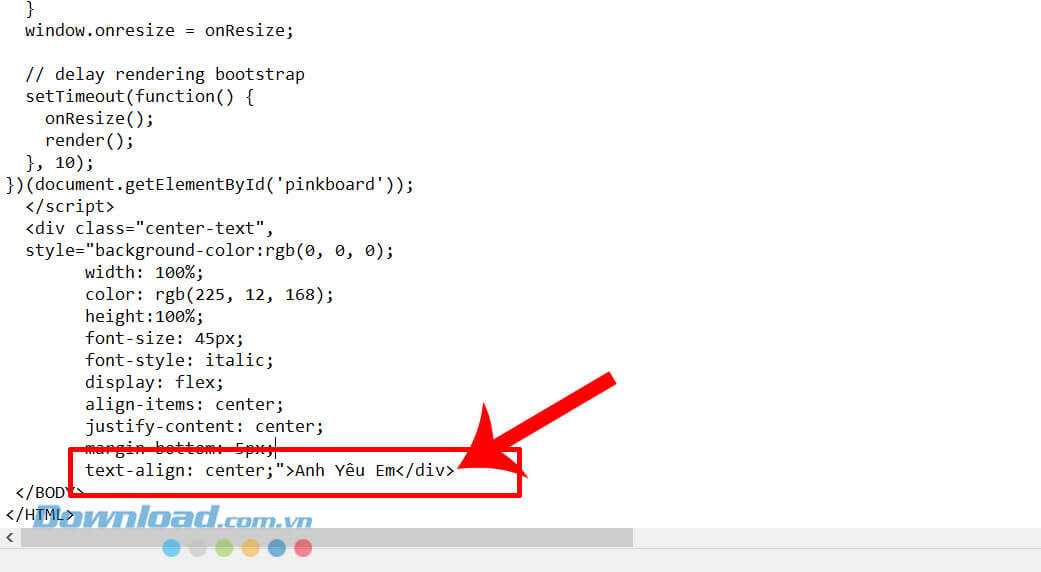
Bước 3: Nếu muốn thay đổi nội dung câu nói trong video trái tim đập tỏ tình, thì các bạn hãy sửa phần text trong dòng code: text-align: center;”>Anh Yêu Em</div>.
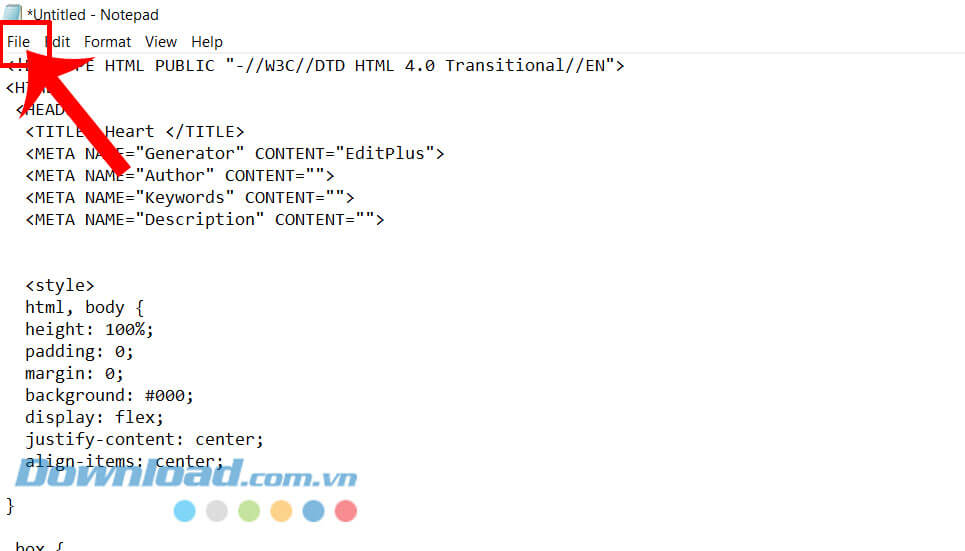
Bước 4: Để lưu và chạy đoạn code này, nhấp chuột vào mục File ở góc bên trái phía trên màn hình.
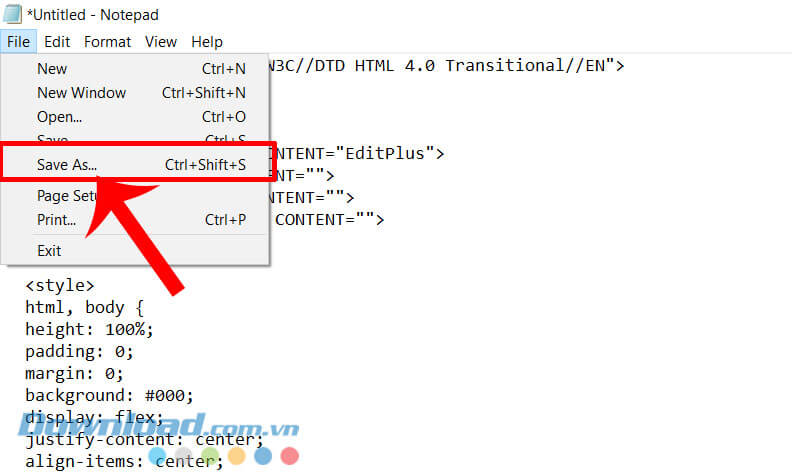
Bước 5: Tại khung cửa sổ tùy chọn lúc này, nhấn vào mục Save As.
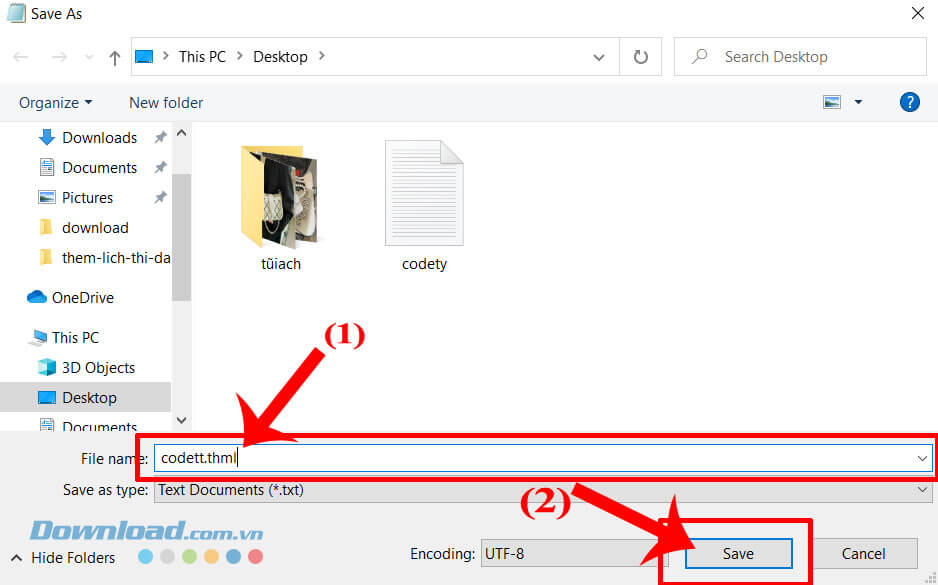
Bước 6: Khi này trên màn hình xuất hiện khung cửa sổ “Save As”, đặt tên file với đuôi “.html”, rồi click chuột vào nút Save.
Bước 7: Cuối cùng, chúng ta sẽ mở file code trái tim về máy tính, bạn sẽ thấy được hình ảnh trái tim đập tỏ tình kèm theo nội dung mà mình đã viết.
Hy vọng rằng sau khi theo dõi bài viết này, thì các bạn có thể dễ dàng và nhanh chóng nhập, tạo code trái tim đập của Thủ Khoa Lý thật ấn tượng để tỏ tình với crush, giống với nội dung của video trong bộ phim ngôn tình Chiếu sáng anh sưởi ấm em của Trung Quốc.
Chúc các bạn thực hiện thành công!

